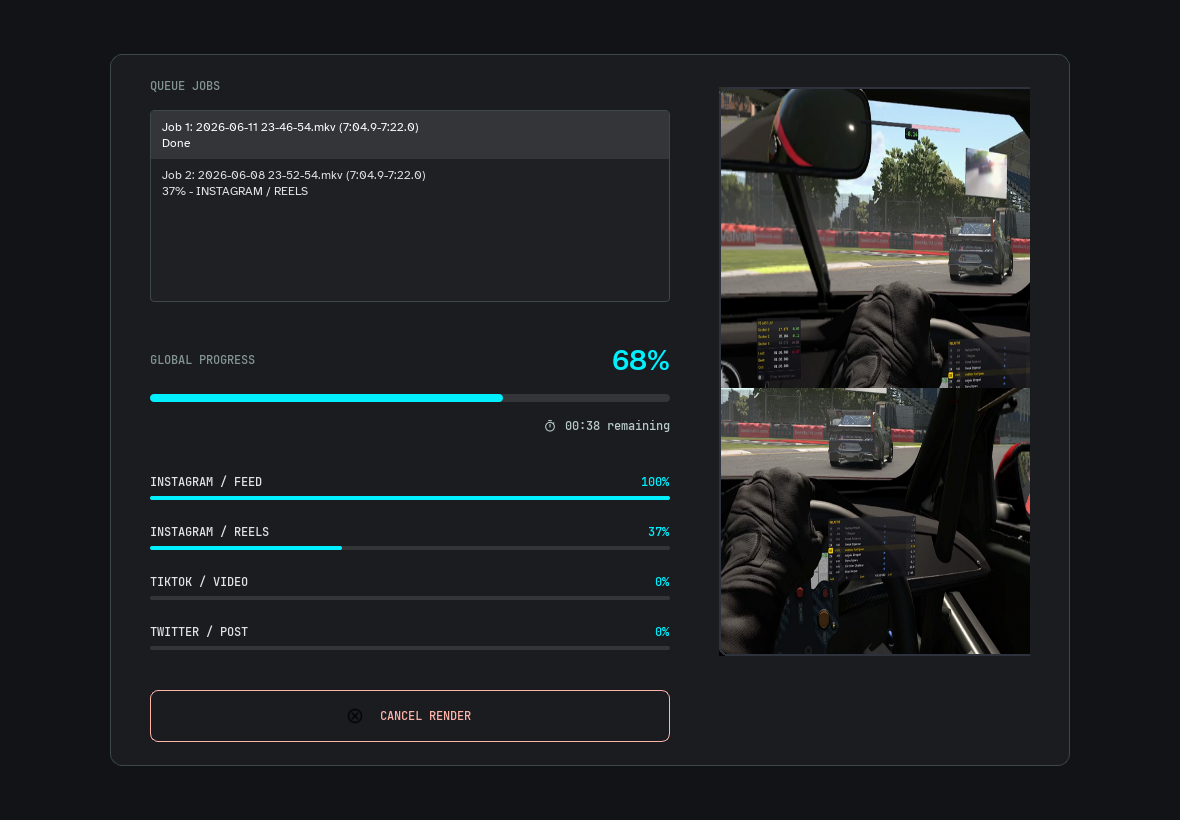
Rendering
Trimmy renders with ffmpeg.
The editor prepares a render specification from:
- the source video path,
- the selected trim range,
- the
TOPandBOTTOMcrop rectangles, - the split ratio,
- the selected platform target,
- the selected quality mode.
Then ffmpeg encodes the final vertical output.
Platform presets
| Platform | Format | Resolution | Max FPS | Max Size |
|---|---|---|---|---|
| Feed, Reels, Stories | 1080x1920 | 60 | 300 MB | |
| TikTok | Video | 1080x1920 | 60 | 4 GB |
| X | Post | 1080x1920 | 60 | 512 MB |
| Chat, Status | 720x1280 | 30 | 16 MB | |
| Telegram | Message | 1080x1920 | 60 | 2 GB |
Quality modes
Trimmy supports platform-aware output settings.
Max: higher quality, larger files, slower encode.Optimized: smaller files, faster encode.
WhatsApp targets are size-sensitive, so Trimmy caps bitrate for the 16 MB limit.
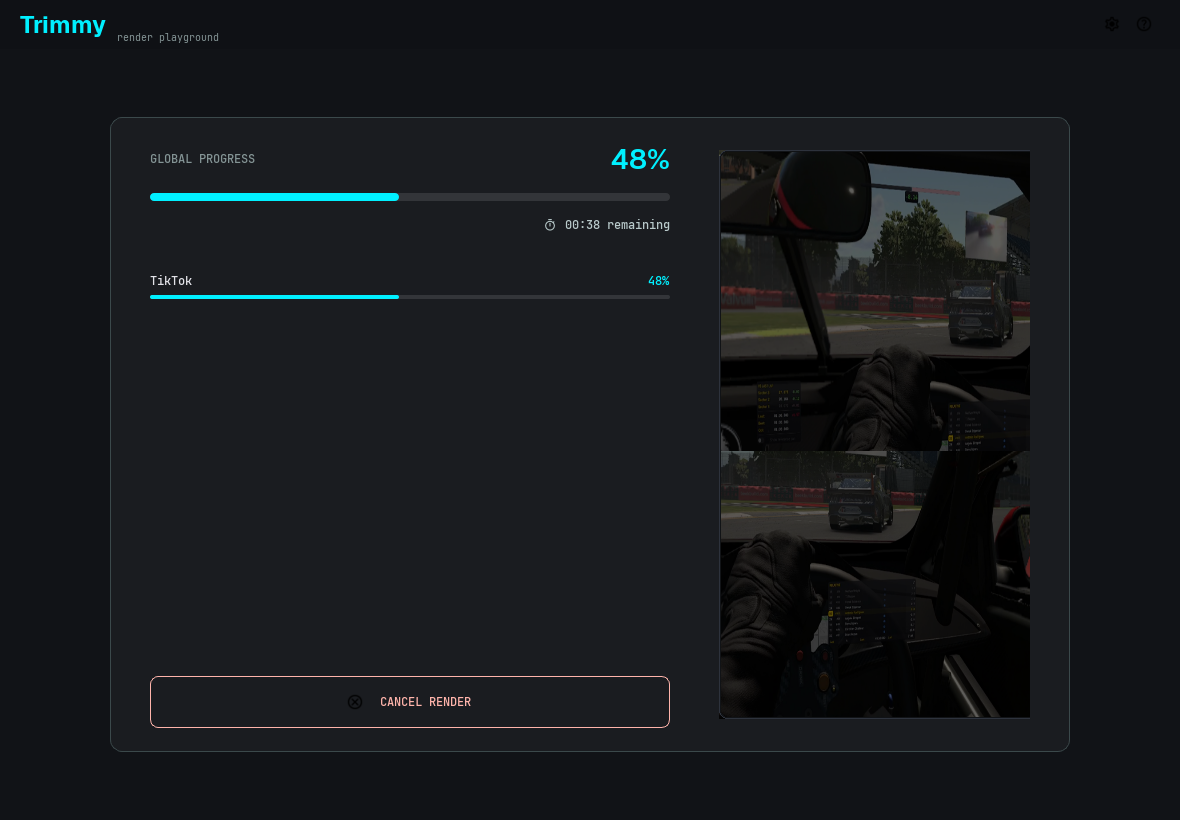
Single render
Click Render Video when the current trim is ready.
source.mkv -> source_tiktok_video_optimized.mp4
Queue render
Use Send to Queue when you want to keep the current trim and continue editing.
Use Render Queue when all queued trims are ready.
clip_1_instagram_reels_optimized.mp4
clip_1_tiktok_video_optimized.mp4
clip_2_instagram_reels_optimized.mp4
clip_2_tiktok_video_optimized.mp4